If your site contains images from other sites that you won't want to sell, you can prevent them from being for sale by "whitelisting" only the images that come from your site.
Fotomoto automatically detects images on your website and makes them for sale (assuming that's the default you set). If your website contains images from other sites (embedded maps for example) and you don't want those images to be for sale, you can add your site's domain to the URL Whitelist, preventing Fotomoto Buy Buttons from appearing on images from any other domains.
 Find the URL(s) to whitelist
The first thing to do is copy the URL of the directory on your server that contains the images you want to sell. The directory URL will be the URL of the image without the image filename as shown here in bold.
https://www.example.com/images/imagefilename.jpg
If you don't know the URL that your images are coming from, try one of the following:
- Right-click an image on your site to see if you can copy the image URL.
- View the source in your browser.
- Contact your site administrator or support team for help.
Add desired URLs to the Whitelist
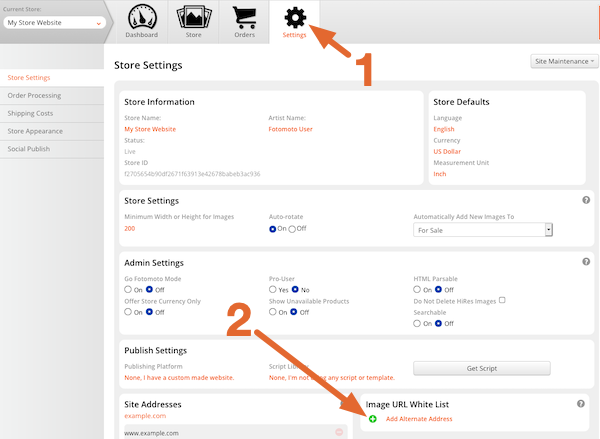
- Log in to your Fotomoto Dashboard and click the Settings tab.
- Click the "(+) Add Alternate Address" button, type or paste the URL from above in to the field that appears, then click OK.
- Repeat as desired for any additional URLs to whitelist.