When Fotomoto is installed on your website, it puts Buy Buttons underneath the images on your page. Below are several ways you can change the appearance of the Buy Buttons.
How to change which images are for sale (turn Buy Buttons on/off)
If you have "For Sale" set as your default Collection, Fotomoto will put Buy Buttons under every image where the width or height is larger than the value set as the "Minimum Width or Height for Images".
If there are images you don't want to sell you have a few options:
- If you want most of your images to be for sale, you can exclude specific images for sale in a few ways...please see How do I exclude a photo from my store?
- If you only want to sell certain images and want to see only those images in your Dashboard, please see How to sell only a few select images on your site.
How to change the Buy Button link text
To change what the Buy Buttons say (the text):
- Go to the Store Appearance page in your Dashboard.
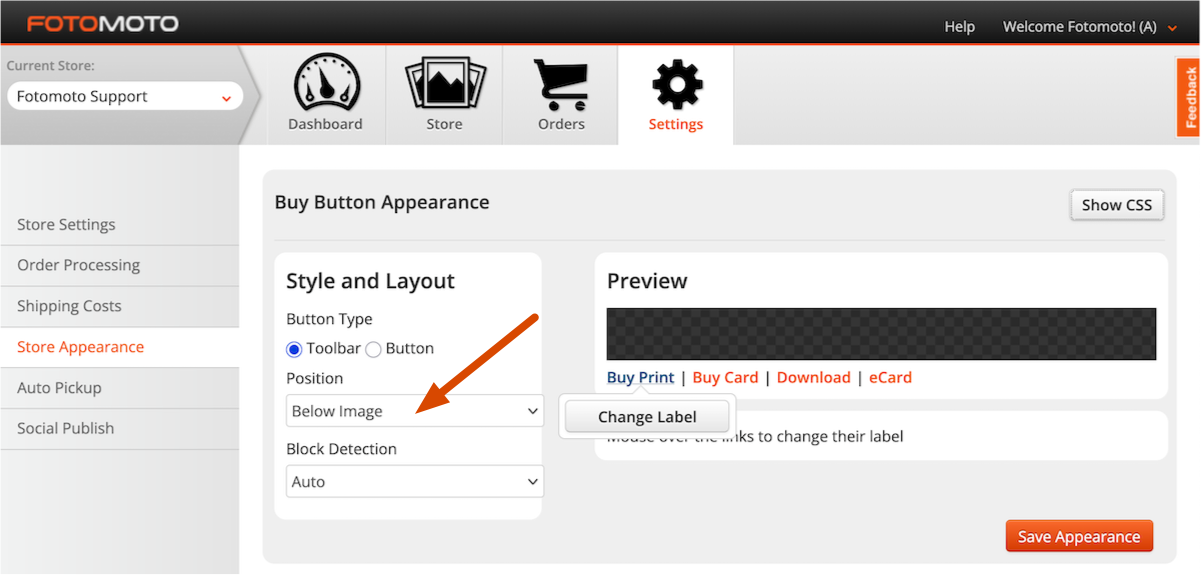
- Roll your cursor over the Buy Buttons that appear in the Preview, and click the "Change Label" button that pops up.
- Enter the desired text and click OK.
Putting the Buy Buttons above the image instead of below
By default, the Buy Buttons will be inserted under your images. You can change the position using the Position setting on the Store Appearance page.
Note that this option may not work with certain lightbox-style galleries.
More control: change the Buy Button appearance with CSS
You can change the look and position of the Buy Buttons using Cascading Style Sheets (CSS). Using this approach you can change fonts, colors, position, hide links and more.
Important: You'll want to know a bit about CSS to do this correctly. We can't always offer CSS programming support but we're happy to guide you in the right direction. We've posted a few Buy Button customization examples to get you started. If you need a hand, contact our support team, otherwise we recommend you seek the assistance of a web designer or other CSS expert if you need further assistance.
How to add custom Buy Button CSS to your Fotomoto Dashboard:
- Click Settings, then Store Appearance to navigate to the Store Appearance page in your Dashboard.
- Click the "Show CSS" button under Buy Button Appearance.
-
Important: there is no way to restore the default CSS once changed, so you may wish to copy it and save it in a safe location. If you make a mistake just contact our Support Team and ask to restore the default CSS.
Edit the CSS as needed, then click the Preview button to see how your Buy Buttons will look in the Preview section. - Click the Save Appearance button to save your changes.
Buy Button HTML/CSS
For reference, here is an explanation of the HTML and CSS that controls the Buy Buttons.
The Buy Buttons are contained in a DIV with the class "FotomotoToolbarClass". Buy Button links are anchors within unordered list items. The separators that go between the links are enclosed in spans within unordered list items. All of these elements have their own class attribute so you can change them individually or all at once.
Here is a simplified view of the HTML structure and classes that control presentation. Note we have removed some of the code for readability.
<div class="FotomotoToolbarClass">

	 <ul class="FotomotoBar">
	  <li class="FotomotoPrintButton">
	   <a class="FotomotoBarLink">Buy Print</a>
	   </li>

	  <li class="FotomotoSeparator">
	   <span class="FotomotoSep1"></span>
	   </li>

	  <li class="FotomotoCardButton">
	   <a class="FotomotoBarLink">Buy Card</a>
	   </li>

	  <li class="FotomotoSeparator">
	   <span class="FotomotoSep2"></span>
	   </li>

	  <li class="FotomotoLicenseButton">
	   <a class="FotomotoBarLink">Download</a>
	   </li>

	  <li class="FotomotoSeparator">
	   <span class="FotomotoSep3"></span>
	   </li>

	  <li class="FotomotoShareButton">
	   <a class="FotomotoBarLink">Share</a>
	   </li>

	  <li class="FotomotoSeparator FotomotoShareSeparator">
	   <span class="FotomotoSep4"></span>
	   </li>

	  <li class="FotomotoECardButton">
	   <a class="FotomotoBarLink">Send eCard</a>
	   </li>

	 </ul>
	</div>
Here's an example - say we want to change the color of the anchor within the print button class to red:
.FotomotoPrintButton a {color: red !important;} /* make buy button link red */Here's another example showing how you can move the Buy Buttons down a bit (by 8 pixels)
.FotomotoToolbarClass { margin-top: 8px !important;} /* move 8 pixels down */Note that you may need to use the "!important" declaration to override the normal declaration.
Want more examples? You can find a few "official" examples in our Buy Button customization examples article.
Advanced customization
For our users familiar with JavaScript, if you want total control over when and where the Buy Buttons appear, how they get "checked in" to Fotomoto Dashboard and more, you can design your own Buy Buttons and use our API functions to open the shopping cart Widget - please see Getting Started with the Fotomoto API.