The Fotomoto Dashboard helps you keep track of your sales, licensing inquiries, and customers. You can also download a detailed sales report that can be opened in your favorite spreadsheet program or database.
Start by logging in to your Fotomoto Dashboard , then follow the instructions below.
View Your Orders
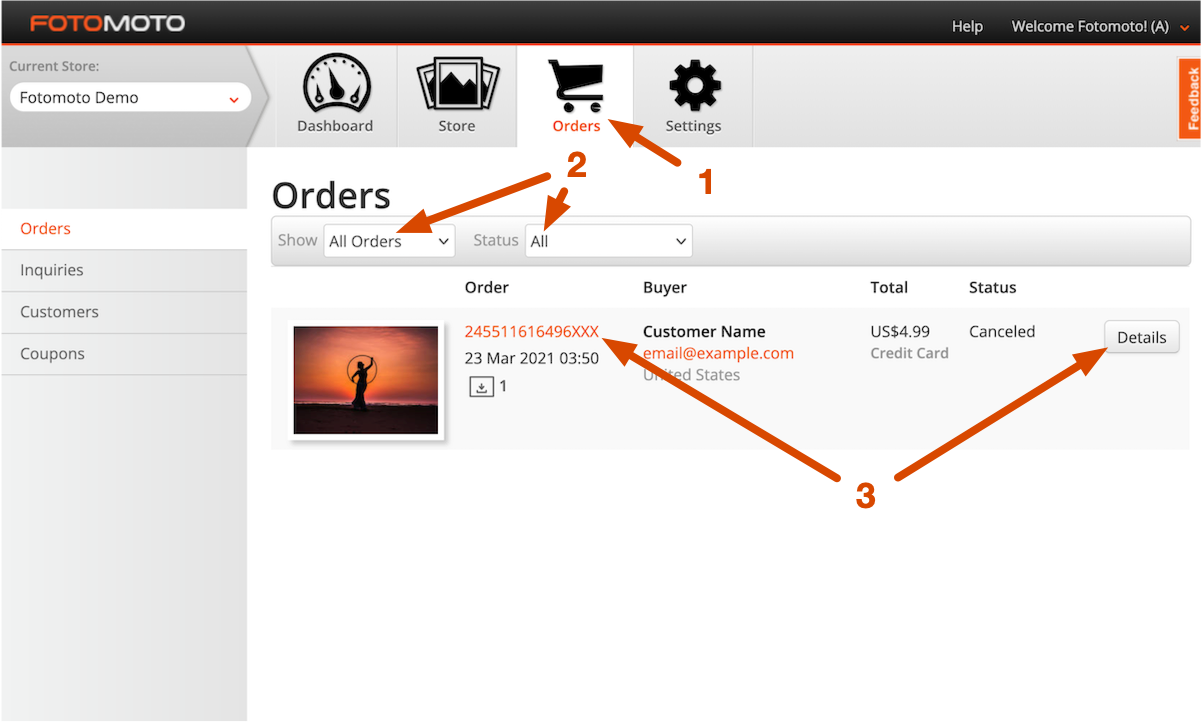
Click on the Orders tab.
Filter the list by product type or order status if desired.
To see a details of a single order, click either the Details button on the right or the orange order number link.
See a List of Your Customers
- Click on the Orders tab.
- Click Customers on the left.
- If desired you can filter the list by paying customers or eCard senders by selecting an option from the Filter drop-down menu.
 Checking Your Licensing Requests
If you have enabled the Contact Me option so that users can request a license of your image, you can see the history of licensing inquiries on the Inquiries page.
Click the Orders tab at the top of the screen.
Click the Inquires link on the left.
You can view the details of the inquiry and respond to it by clicking the Inquiry Details button.
Download a sales report
You can download a comma-separated value (CSV) file that can be imported in to most any spreadsheet or database.
- Click the Orders tab at the top of the screen.
- Click the Customers link on the left.
- Click the Actions drop-down menu and choose which file you want to download. Wait a moment, and when the file browser prompt appears, select a location on your computer where to store the file.